Tips
Free-axis stop on collision
Check the setting labeled “free-axis collision” (軸フリー衝突).
COBOTTA supports two collision-response modes:
Stop immediately upon collision.
Free axis upon collision.
In free-axis mode, the controller can exit the free-axis state and enter a recoverable continue-stop state when the applicable recovery conditions are met, such as:
COBOTTA motion comes to a stop, even if contact persists in the free-axis state.
The robot remains stopped for at least one second after collision detection.
An axis moves by at least 10 degrees after the collision is detected (after the axis has been released).
This makes software-only recovery possible even after a collision leads to a stop. In limited testing, this feature operated as expected.
However, the ease and reliability of recovery depend on the circumstances. It is still difficult to determine whether free-axis collision handling can safely be incorporated as an expected step in an automated sequence.
Nevertheless, this collision-response option significantly broadens the possible operating and motion strategies for COBOTTA.
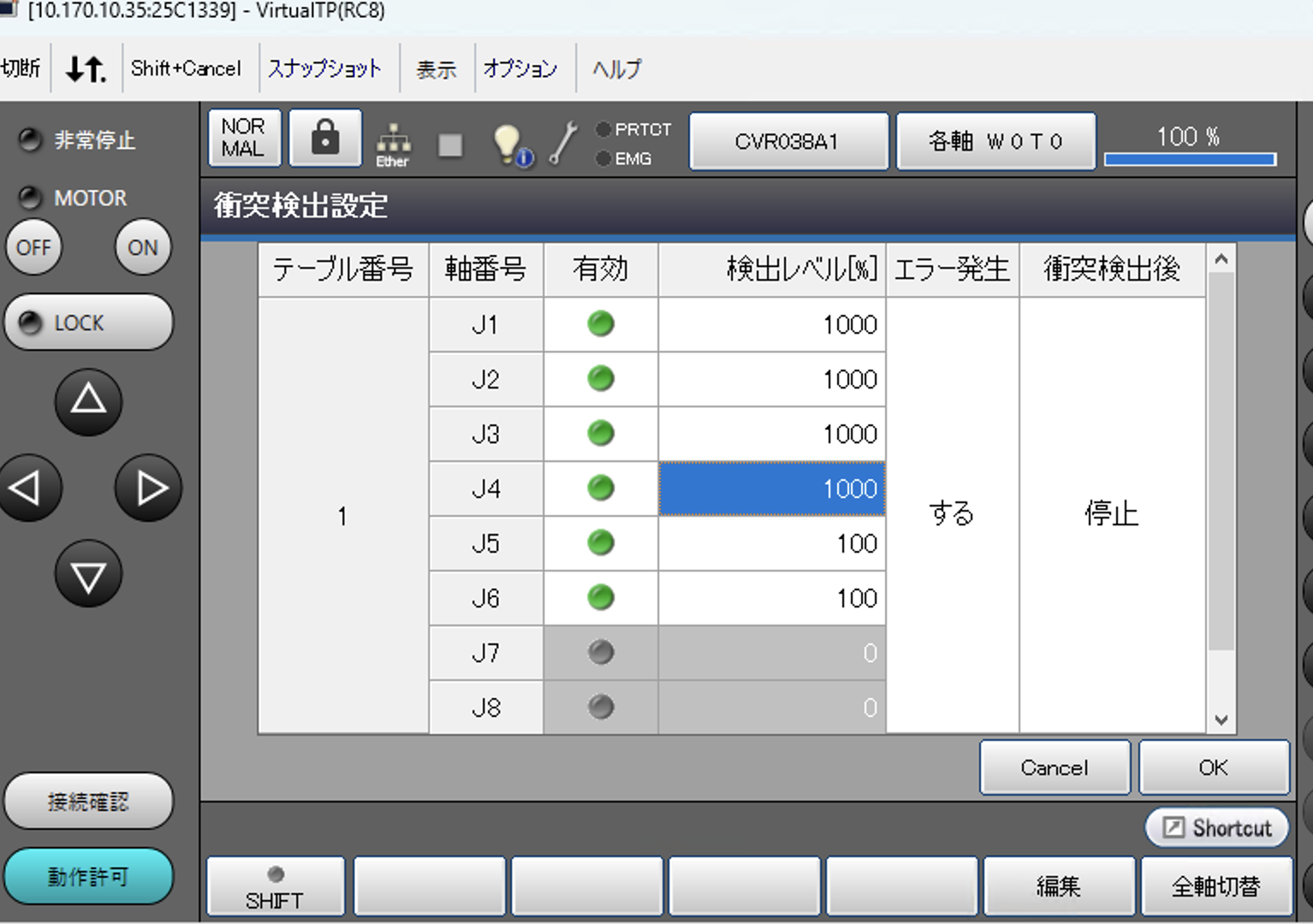
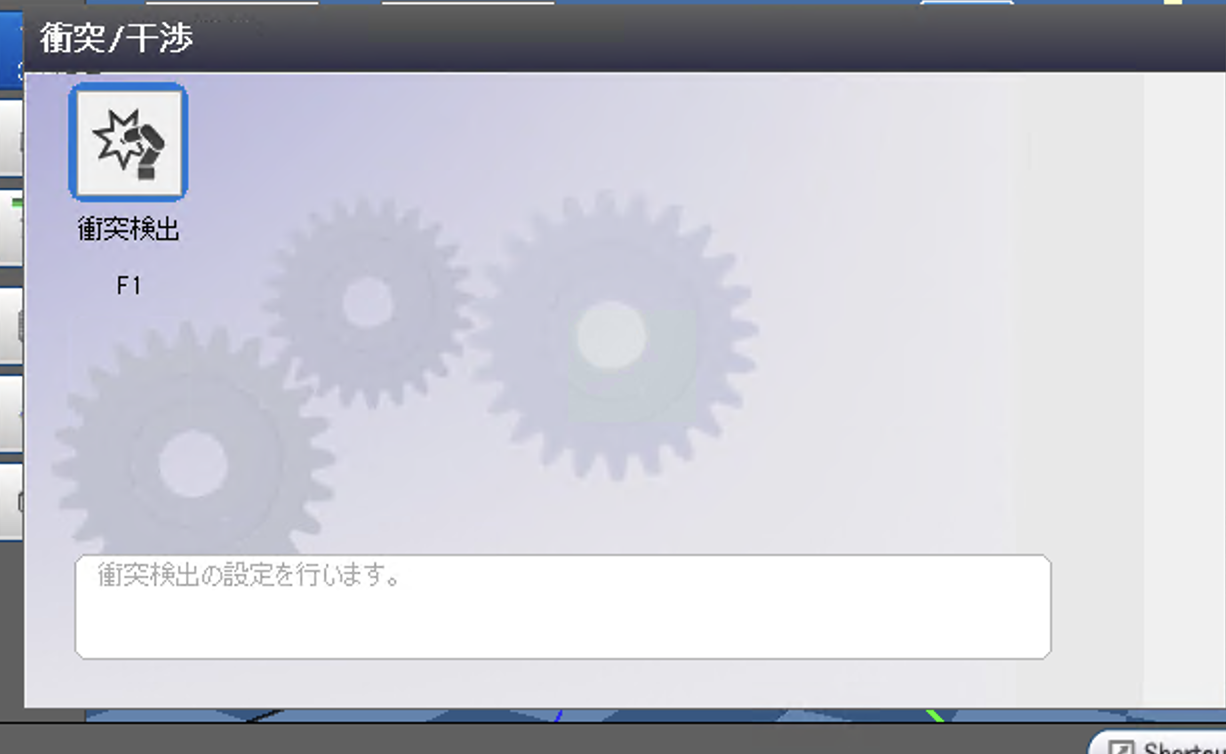
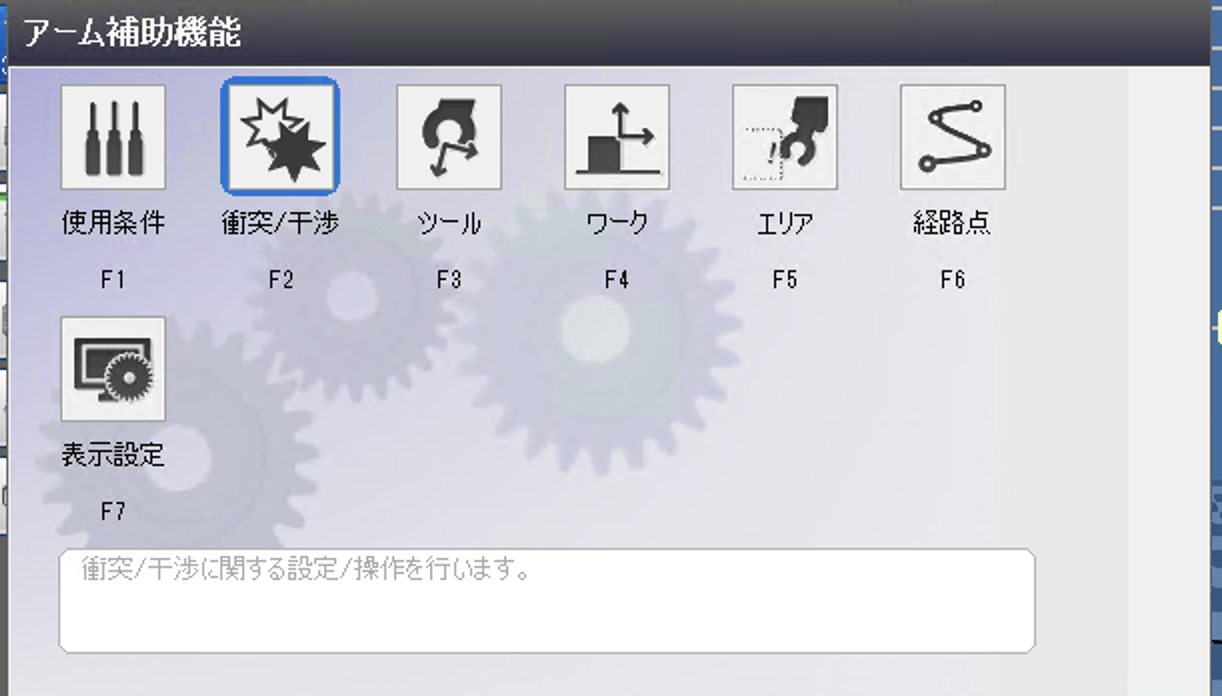
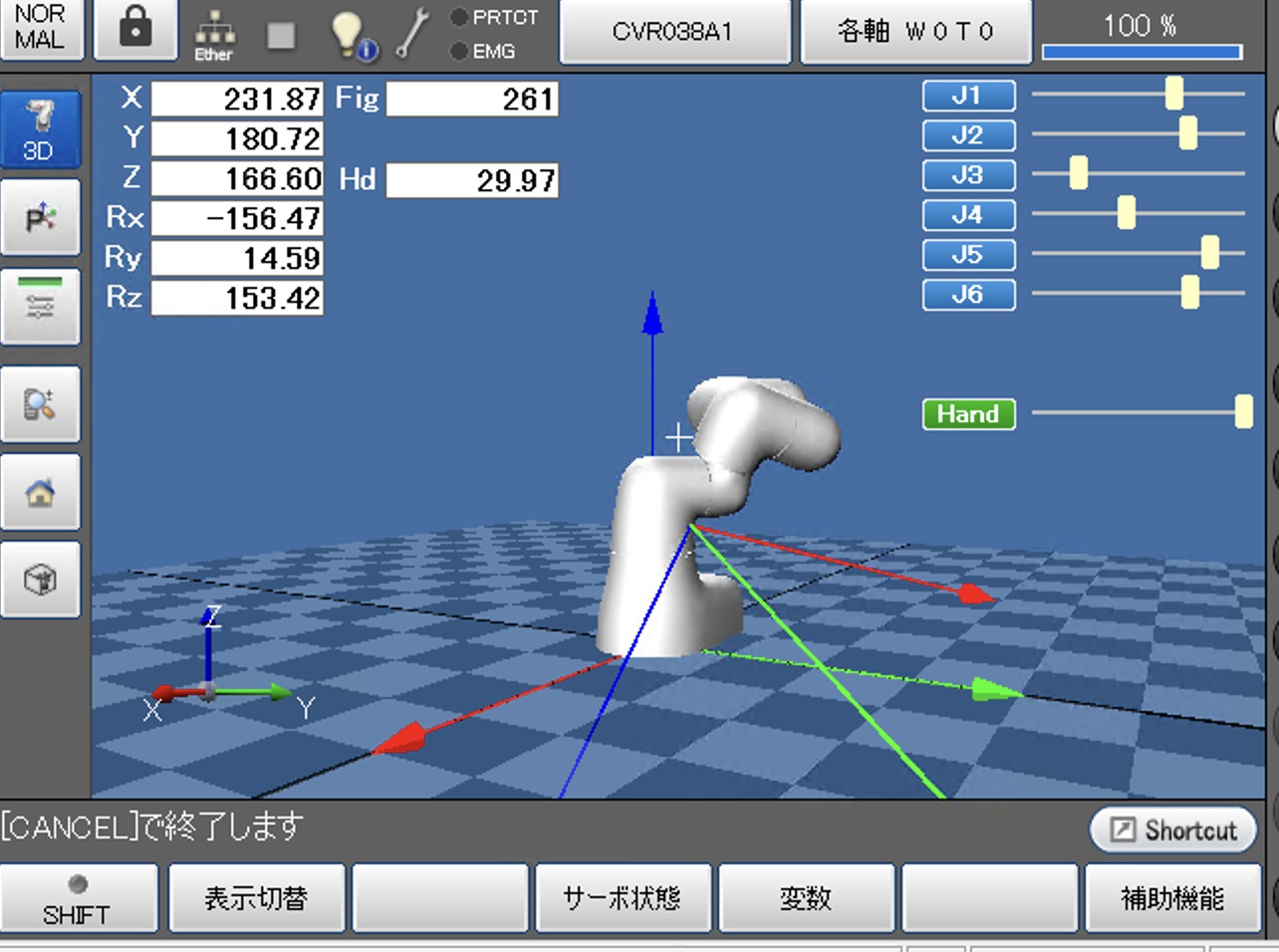
Configuring free-axis collision handling
Arm
Auxiliary functions
Collision / interference
Collision detection
Collision detection settings
The parameter can be set up to 1000%. A higher value makes collision detection less sensitive.
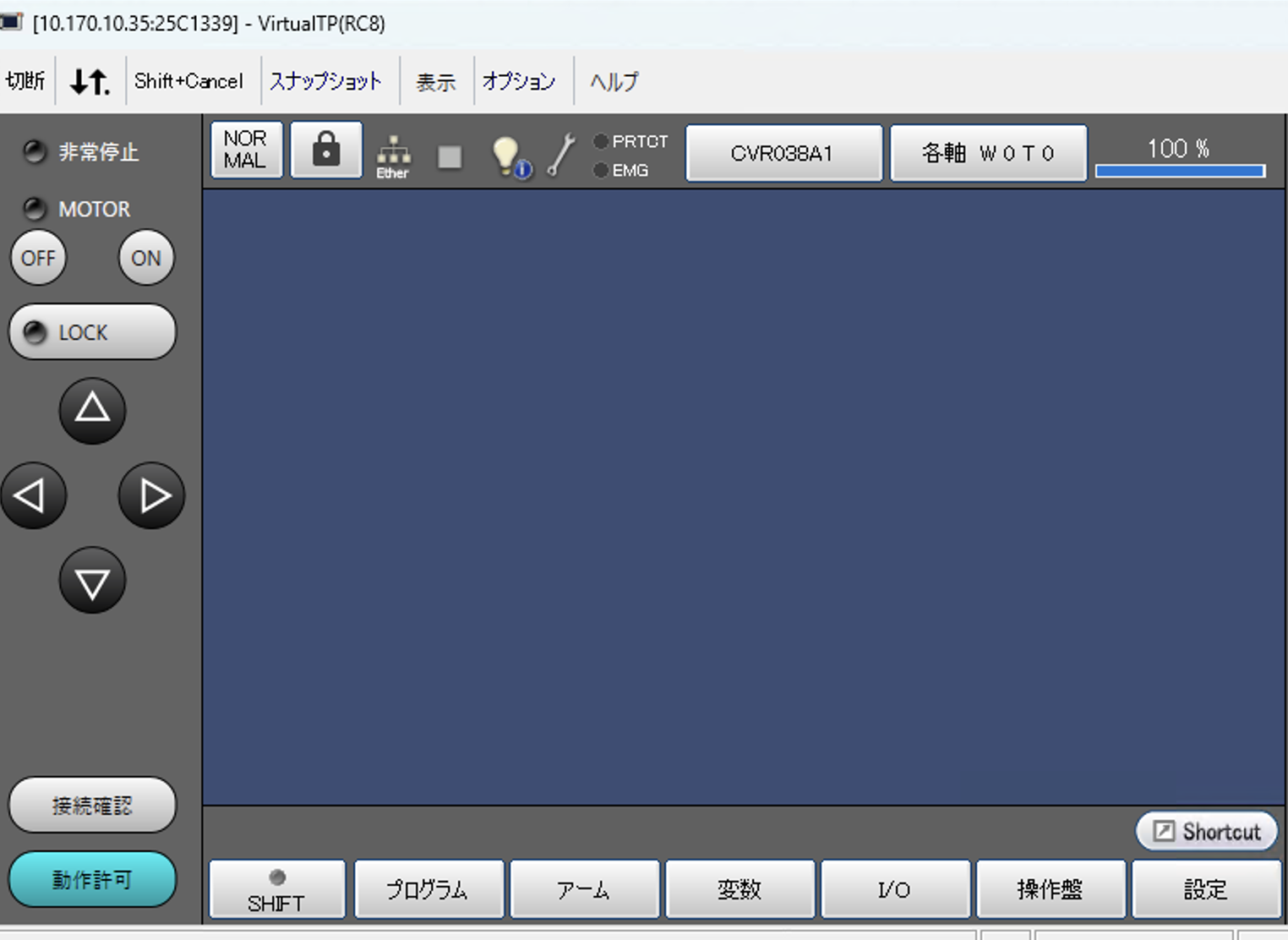
Maximum-speed parameters
COBOTTA’s dedicated hardware parameter configuration utility provides the settings shown below. After installing DENSO’s WINCAP3, create a project, configure the controller, and load its settings from the controller to access the parameter screen.
Parameter tool:
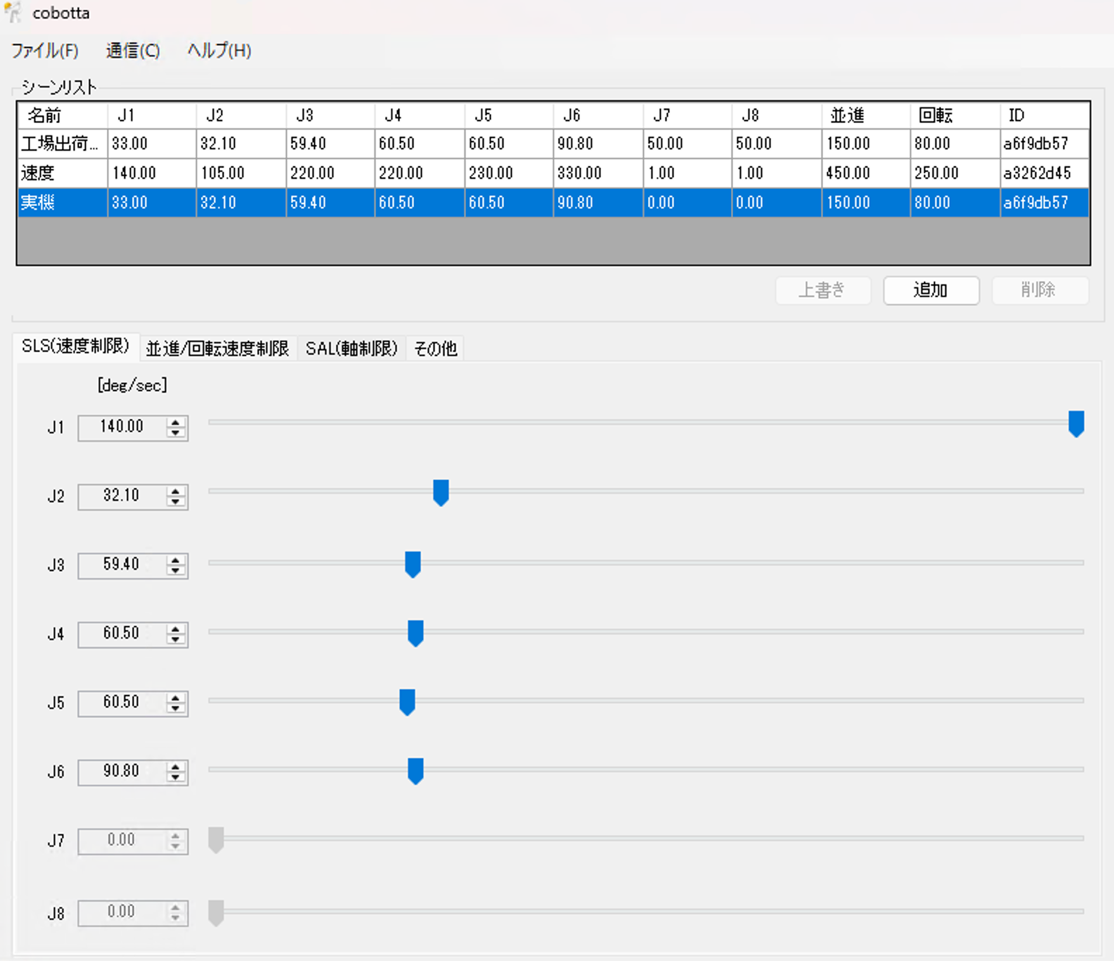
The screen suggests that speed limits can be adjusted over a fairly wide range. However, when the hardware speed limit was actually changed and measured:
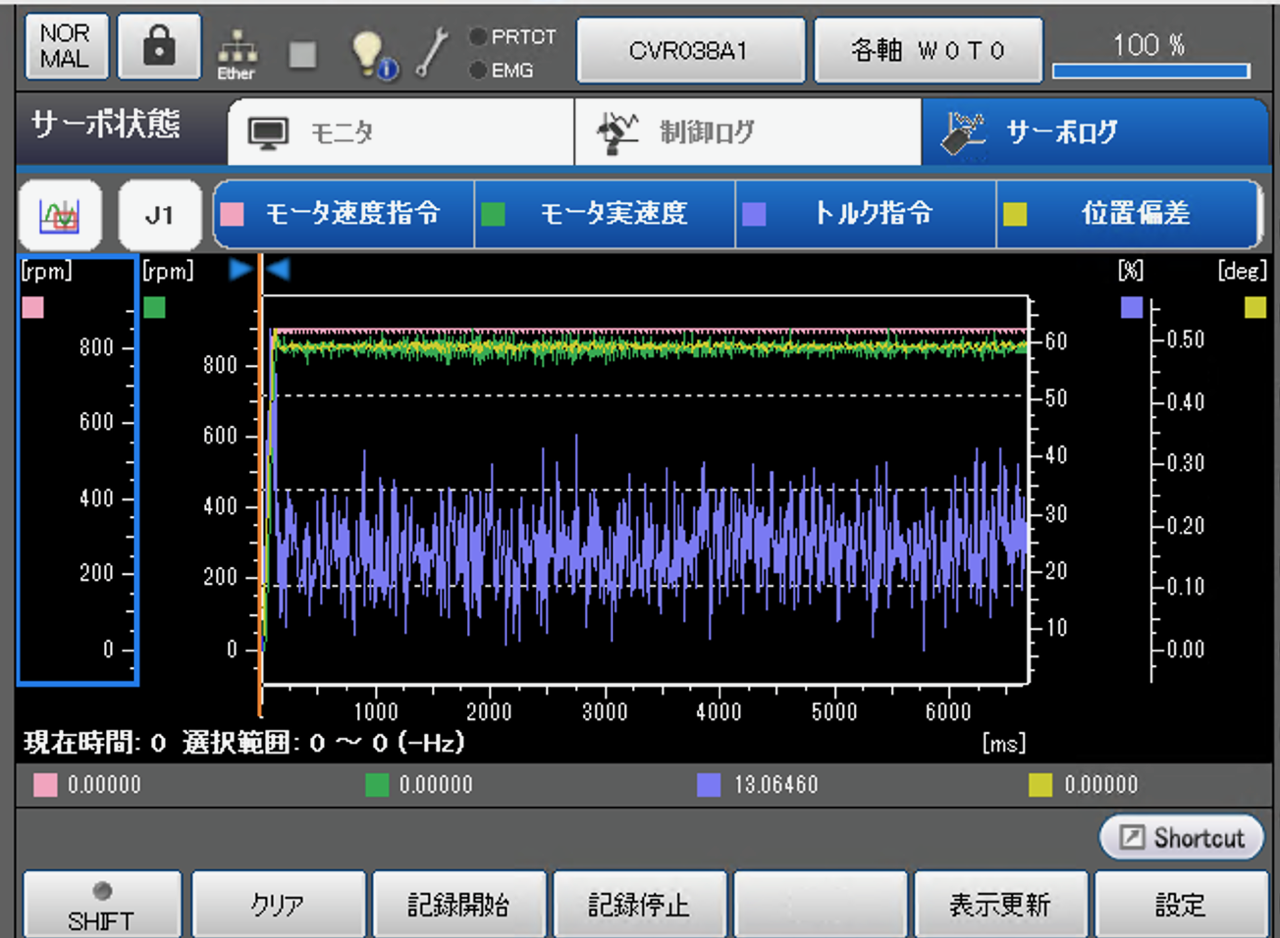
Actual J1 speed with the maximum setting:
Actual J1 speed with the normal setting:
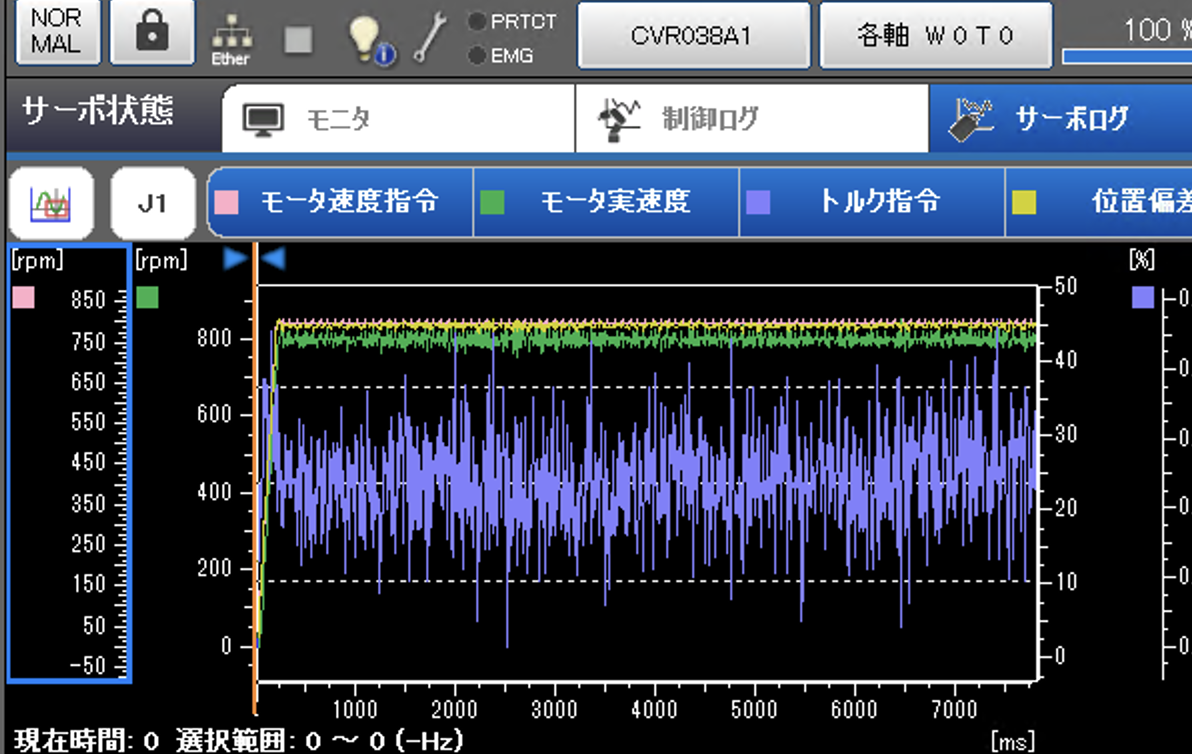
The measured J1 speed changed by only about 6%, with no noticeable difference in operation.
For J6, by contrast:
J6 normal speed setting:
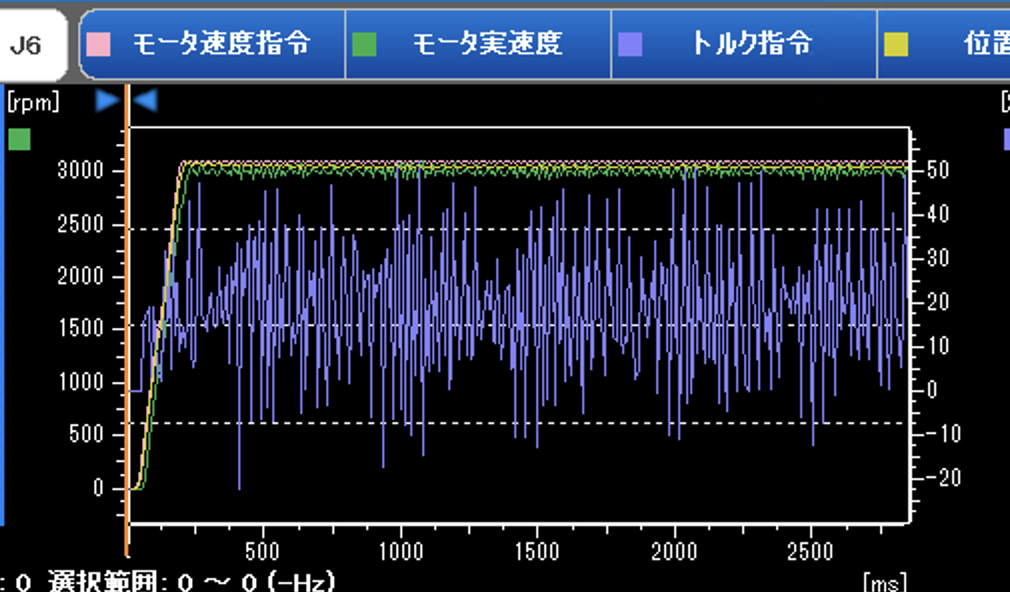
J6 maximum speed setting:
The measured speed increased by nearly a factor of 1.5.
This suggests that changing the speed limit is more effective for motions involving higher-numbered axes. For load-bearing axes such as J1, the benefit appears smaller.
Configuring the parameters
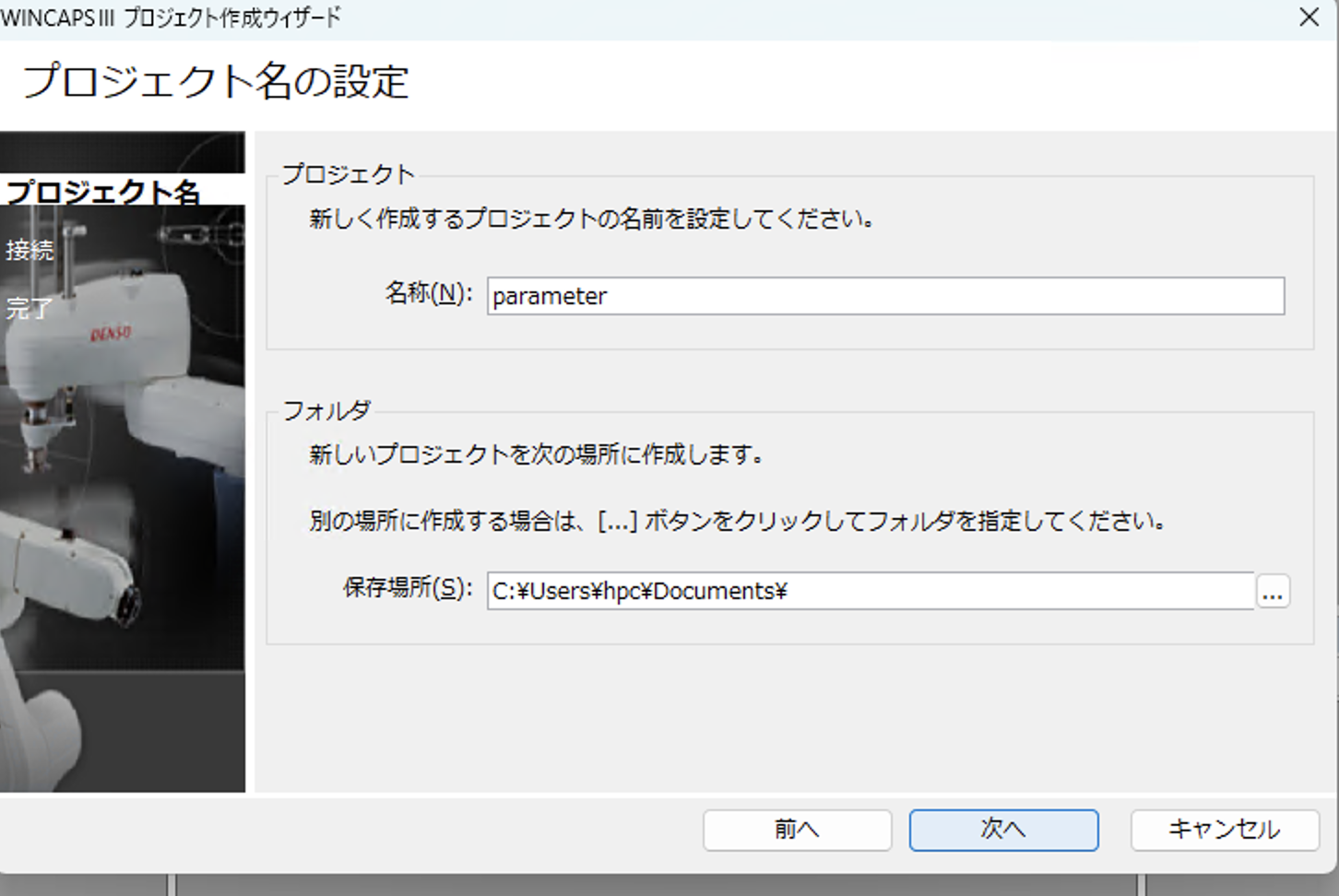
Use WINCAP3 and the Parameter Setting Tool installed alongside it. A WINCAP3 license is provided with the purchase of a COBOTTA unit.
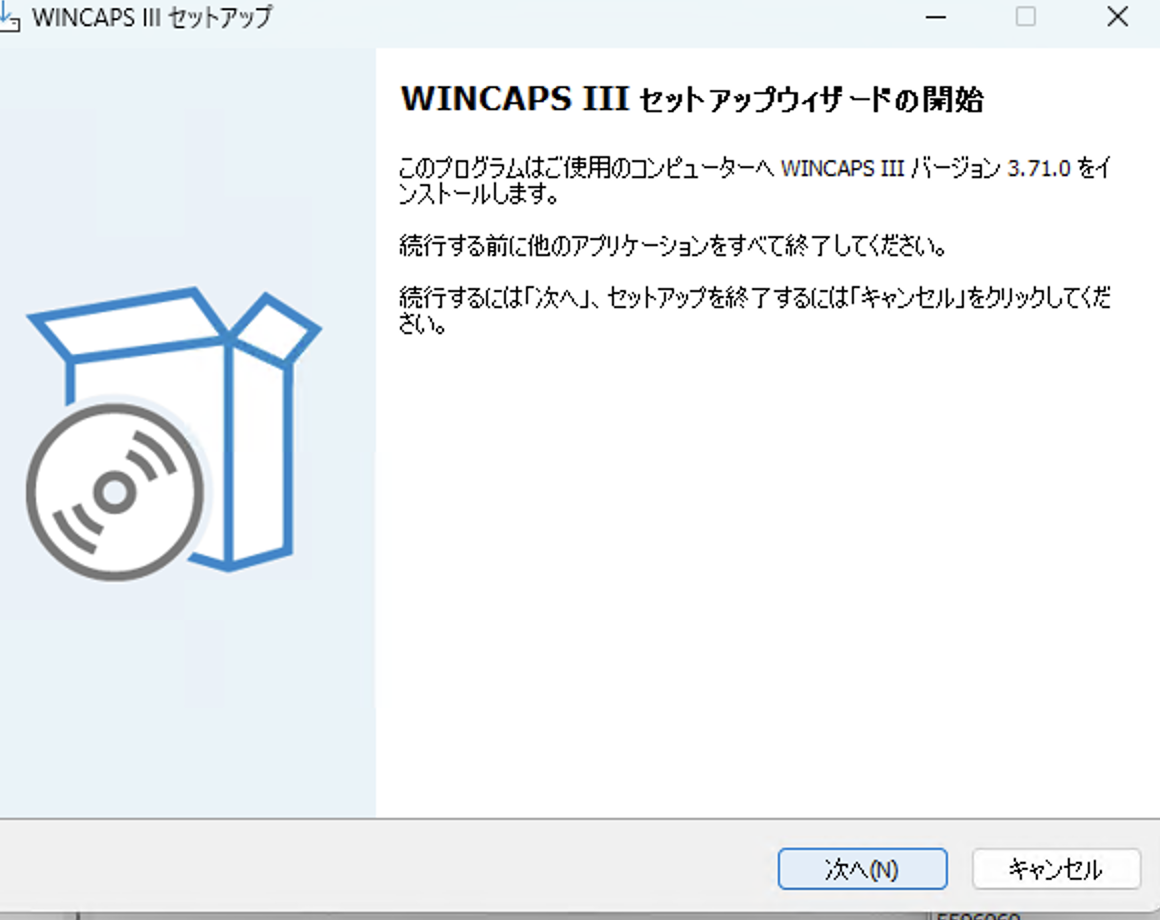
Install WINCAP3.
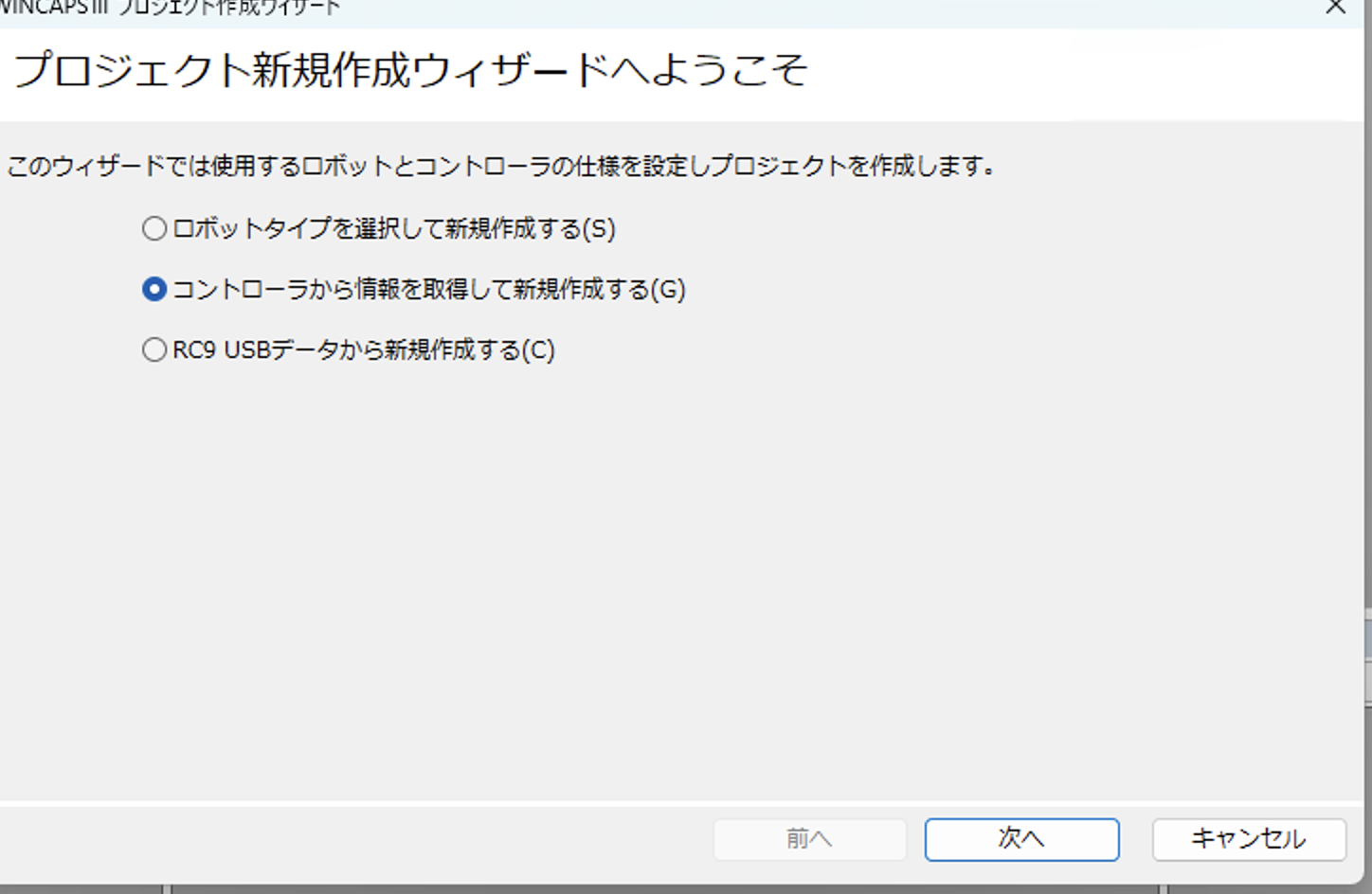
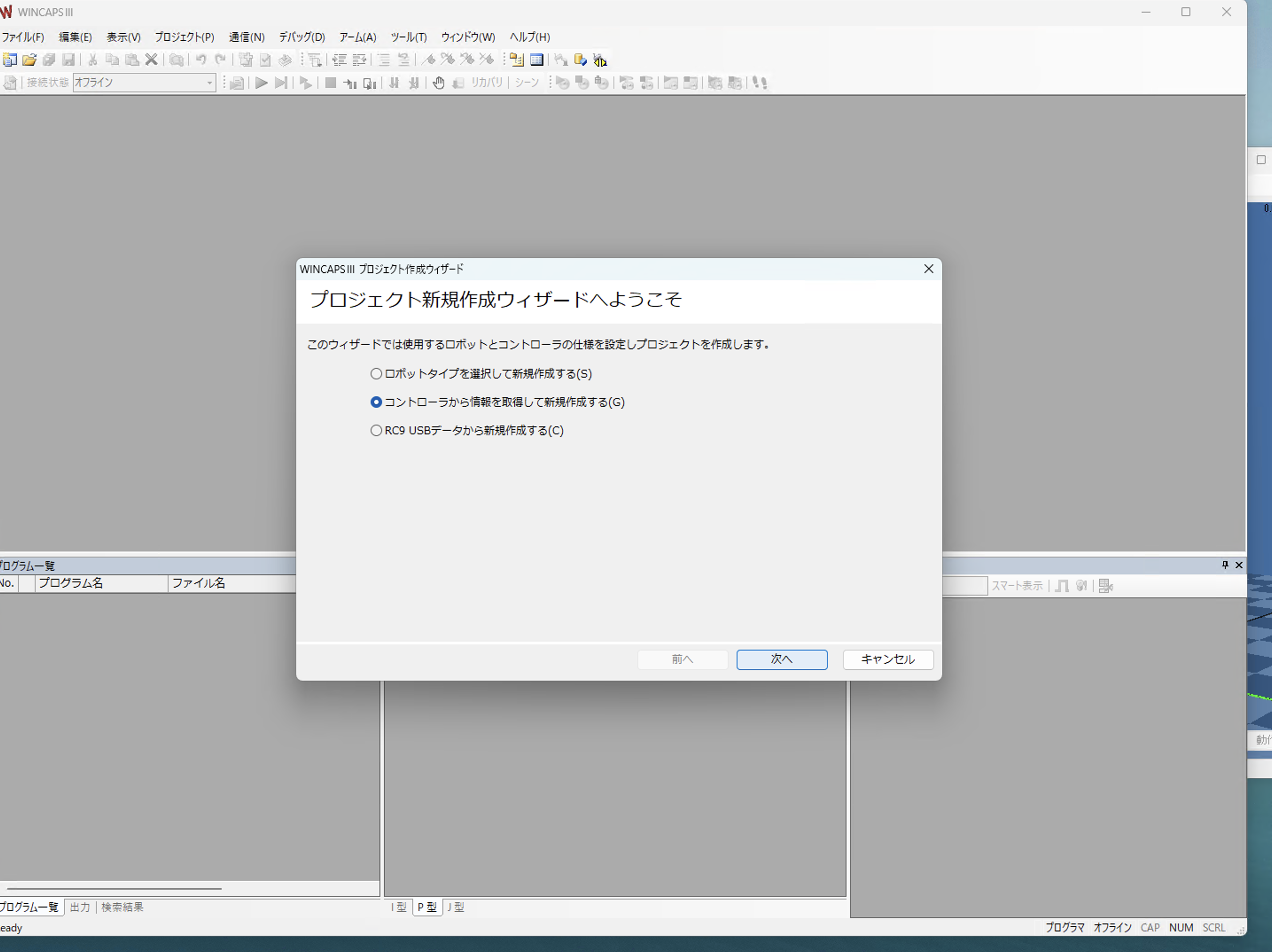
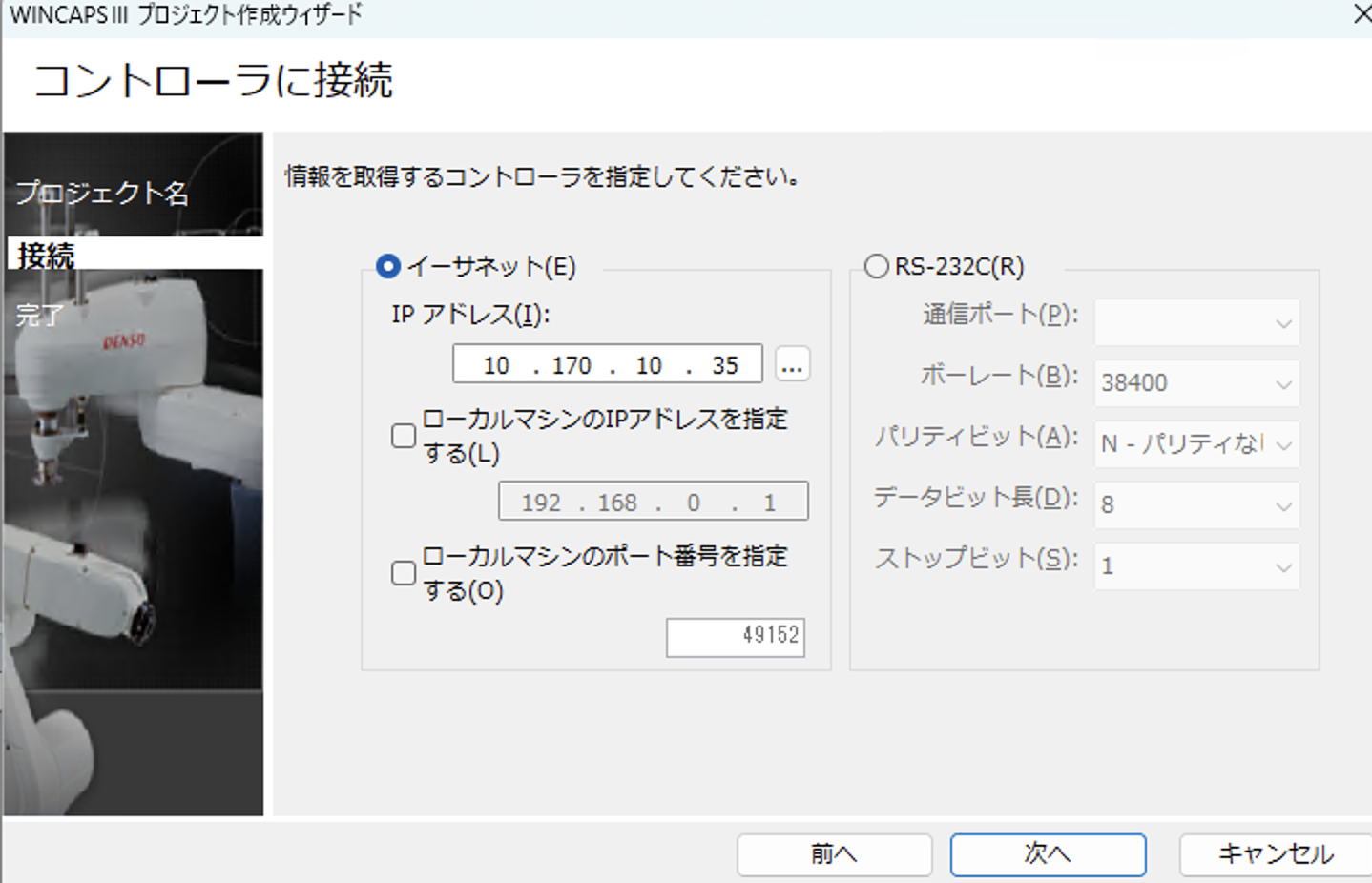
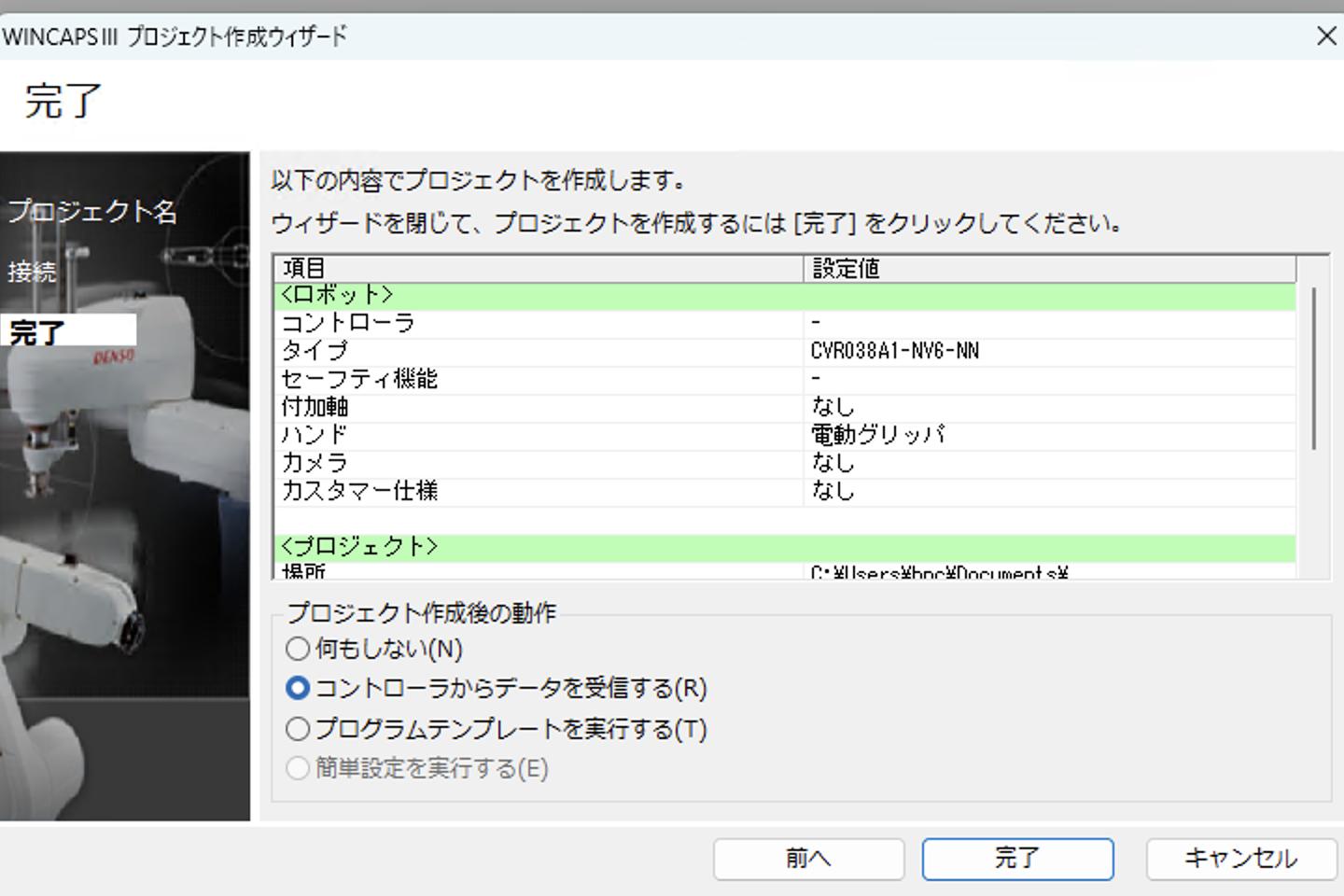
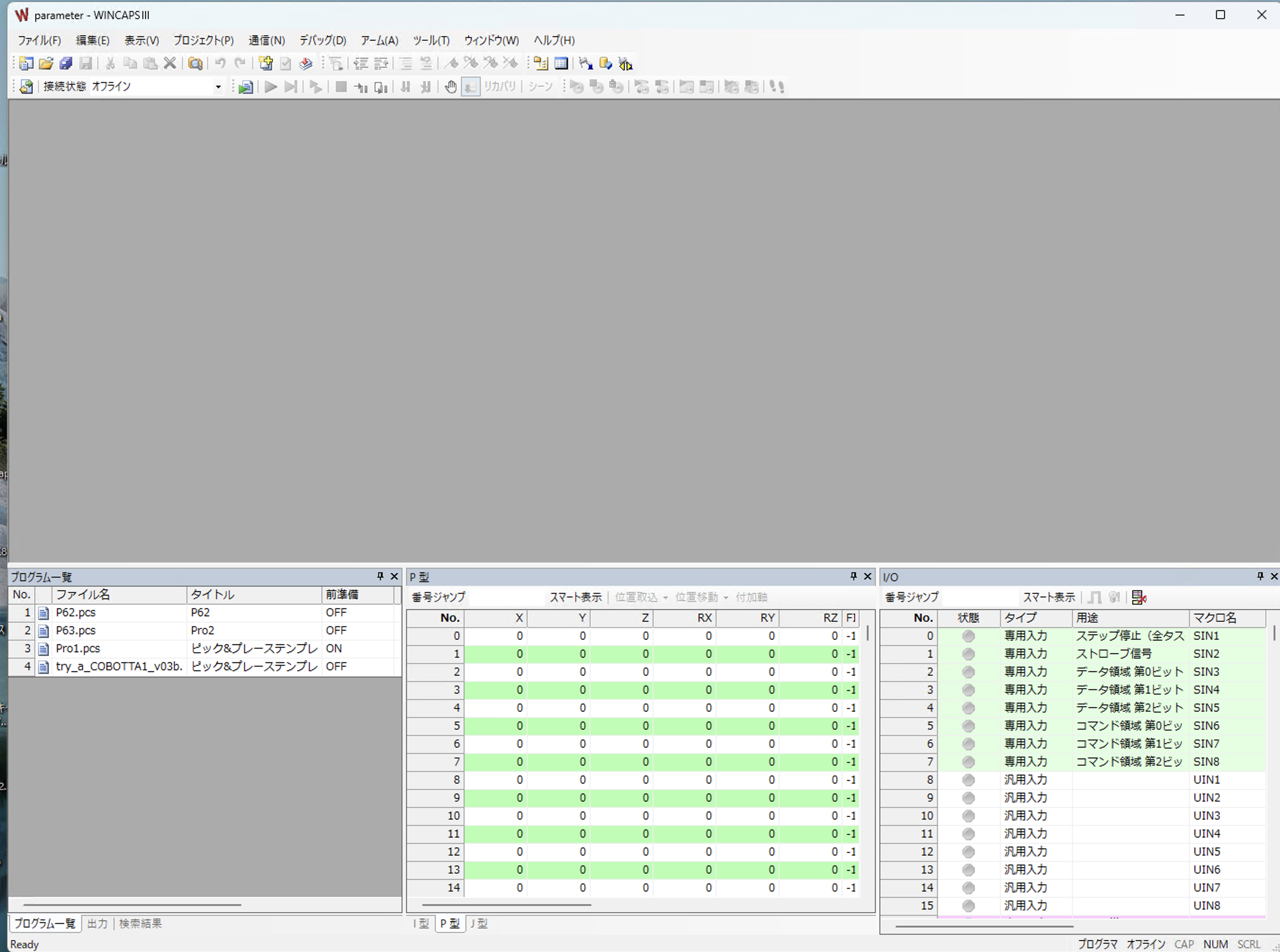
Create a new project in WINCAP3; the Parameter Setting Tool requires a project even if WINCAP3 itself is not used to move the robot.
The project is required to access the robot and retrieve controller parameters.
The Parameter Setting Tool uses the WINCAP3 project for this operation.
Launch the Parameter Setting Tool (installed with WINCAP3).
Open the project.
Choose Add scene. Different scenes can hold different parameter sets.
Parameters can be configured in newly added scenes.
The actual-machine and factory-default scenes cannot be edited.
Transfer the parameters using the Parameter Setting Tool’s communication function.